Chat participant
The @pharaoh chat participant is a GitHub Copilot Chat integration that gives you
an AI assistant with deep knowledge of both Sphinx-Needs
and the ubCode extension.
Because it has direct access to the ubCode and Sphinx-Needs documentation, it can
answer questions about anything in either tool or do changes based on your request.
Typical queries you might have:
“How do I configure sphinx-needs?”
“Please move the sphinx-needs configuration from my conf.py into a ubproject.toml”
“Please migrate to the newest sphinx-needs version”
“What is the syntax for linking requirements to test cases?”
“How do I filter needs in a needtable?”
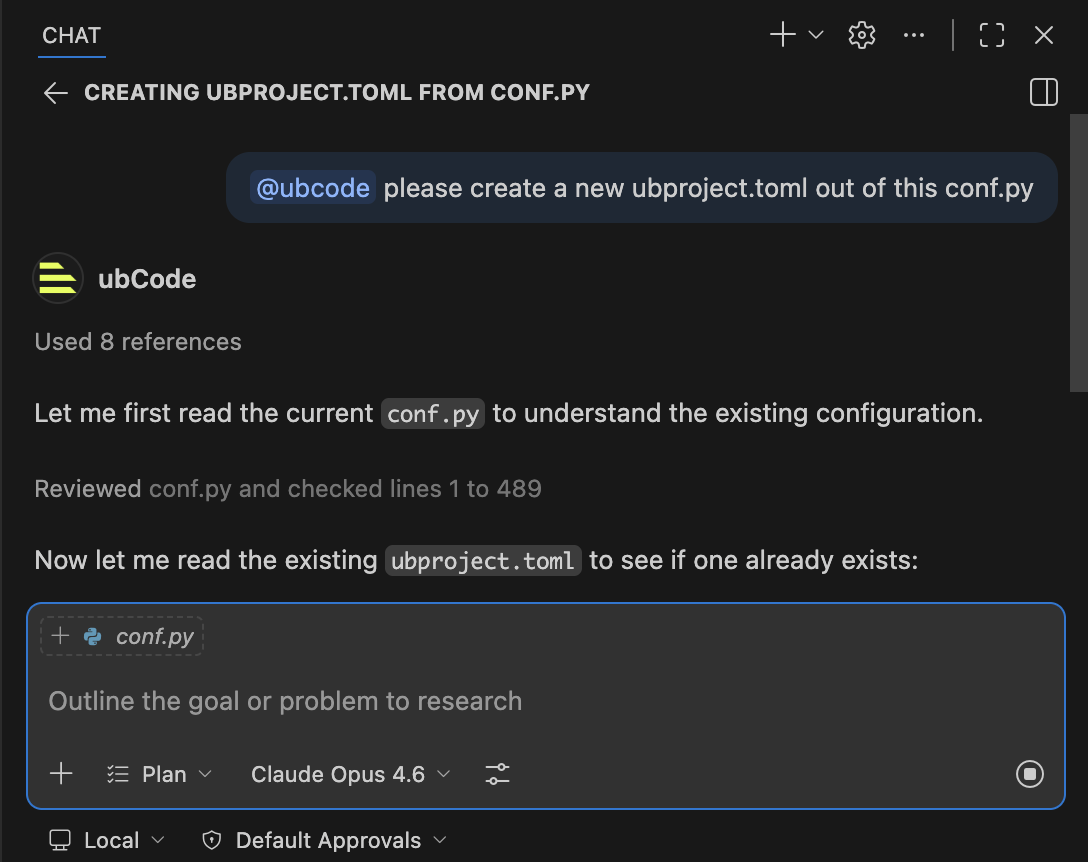
Example of the chat participant in action, called from the VS Code Chat panel.
How to Use
Invoke the assistant by typing @pharaoh in the GitHub Copilot Chat panel,
followed by your question:
@pharaoh How do I create a custom need type with extra options?
The participant retrieves the relevant documentation pages and generates a focused answer in the context of your question. No project needs to be open for general documentation questions, but when a workspace is active the participant also takes your project context into account.
Documentation retrieval is served by the ubCode engine, which the extension asks over the language server: it keeps the merged catalogue of the Sphinx-Needs and ubCode documentation, fetches the pages that were selected, and caches both for the lifetime of the editor session. The extension only runs the small model that picks pages from that catalogue. If the language server is not running, or a documentation site cannot be reached, the participant says so and answers without documentation context rather than failing.
Important
If a follow-up question is still about Sphinx-Needs or ubCode, prefix it with
@pharaoh again so the participant continues to use the documentation context
rather than falling back to general Copilot behaviour.
Configuration
The following VS Code settings control the chat participant’s behaviour.
ubcode.chatParticipant.llmselectionThe Copilot model used for the documentation retrieval phase, which is the internal step where the participant selects which documentation pages to include in its context. The model selected in the chat window is always used for generating the answer itself. Leave this empty (the default) to also use the chat window model for retrieval, or set a specific model identifier (for example
gpt-4o) to pin the retrieval step to a different model.The easiest way to change this is via the Select documentation retrieval model for Pharaoh command in the Command Palette, which opens a quick-pick of available models and writes the setting for you. Alternatively, you can edit it manually via (search for
ubcode chatParticipant) or directly insettings.json.
Commands
The following commands are available in the Command Palette
(Ctrl+Shift+P / Cmd+Shift+P) and are prefixed with ubCode:
Select documentation retrieval model for Pharaoh Opens a quick-pick to change the model used for the documentation retrieval phase without editing settings manually.